
Before you start
The idle desktop uses about 400 MB of memory, and an open web browser uses much more. We recommend a plan with 4 GB of RAM or more. The commands below run as root over SSH (see how to connect from Windows or from Linux and macOS).Installing XFCE and the RDP server
The installation downloads about 2 GB and takes a few minutes:
# apt update
# apt install -y xfce4 xfce4-goodies xrdp
# apt install -y xfce4 xfce4-goodies xrdp
Creating the desktop user
Use a regular user instead of root. The command asks for a password: choose a strong one, because remote access is open to the internet. The other questions (name, phone...) can be left blank.
# adduser user
# usermod -aG sudo user
The second command lets this user install programs with sudo. Replace user with the name you prefer, here and in the next commands.# usermod -aG sudo user
Setting up remote access
Set XFCE as the user's session and restart the RDP server:
# echo xfce4-session > /home/user/.xsession
# chown user: /home/user/.xsession
# adduser xrdp ssl-cert
# systemctl restart xrdp
Access uses port 3389. If you enabled the UFW firewall (see the VPS security tutorial), allow the port, preferably only from your IP:
# chown user: /home/user/.xsession
# adduser xrdp ssl-cert
# systemctl restart xrdp
# ufw allow from YOUR_IP to any port 3389 proto tcp
To allow it from anywhere, use ufw allow 3389/tcp.
Connecting to the desktop
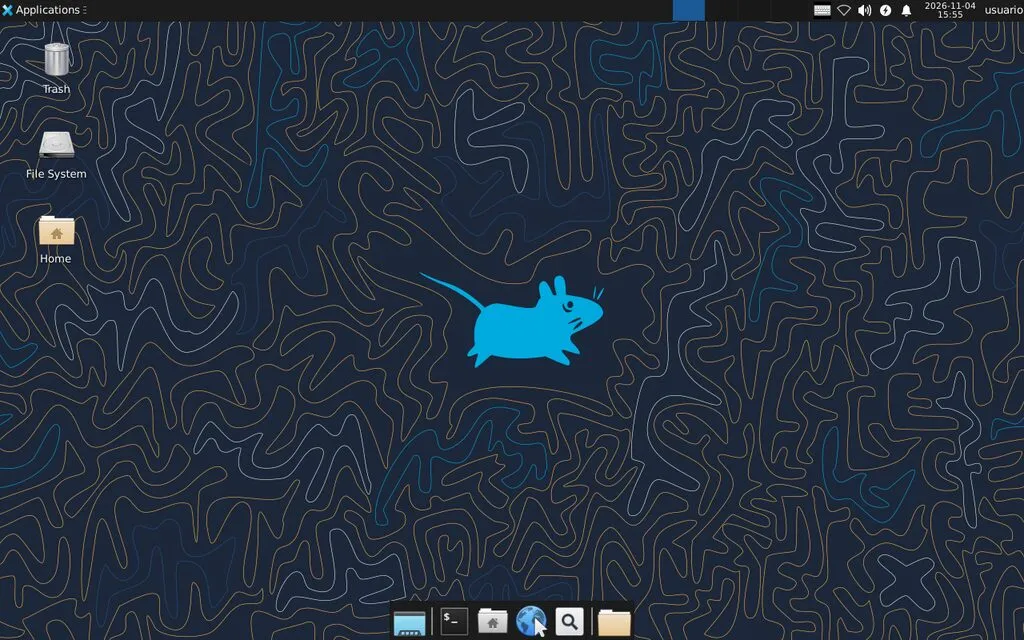
On Windows: open Remote Desktop Connection (or press Windows + R and type mstsc), enter the server IP (it is in your account panel) and click Connect. On the first connection, Windows warns that it cannot verify the identity of the computer: check the option not to ask again and click Yes. On the login screen, enter the user and password created above.On macOS, Android and iPhone: install the Windows App (formerly Microsoft Remote Desktop) from Microsoft, add a PC with the server IP and connect with the same user and password.
Installing a web browser
From the desktop terminal (or over SSH, as root), install Firefox:
# snap install firefox
Tips
- Closing the connection window only disconnects: the session and open programs keep running on the server, and you return where you left off on the next connection. To end it, use Log Out in the XFCE menu.
- Do not log in with the same user at the same time on the panel console and over RDP: the XFCE session can only be open in one place at a time.
- If the screen is slow, in the Remote Desktop Connection options, under Experience, choose a slower connection to reduce image quality.
If you have any difficulties, open a support ticket: Open ticket