
From Terminal or PowerShell (Windows 10 and 11)
Windows 10 and Windows 11 already include the SSH client. Open Terminal or PowerShell from the Start menu and type, replacing it with your server IP:
# ssh root@SERVER-IP
On the first access, confirm the server identity by typing yes, then enter the password (it is not shown while you type). Done: the commands you type now run on the server.With PuTTY
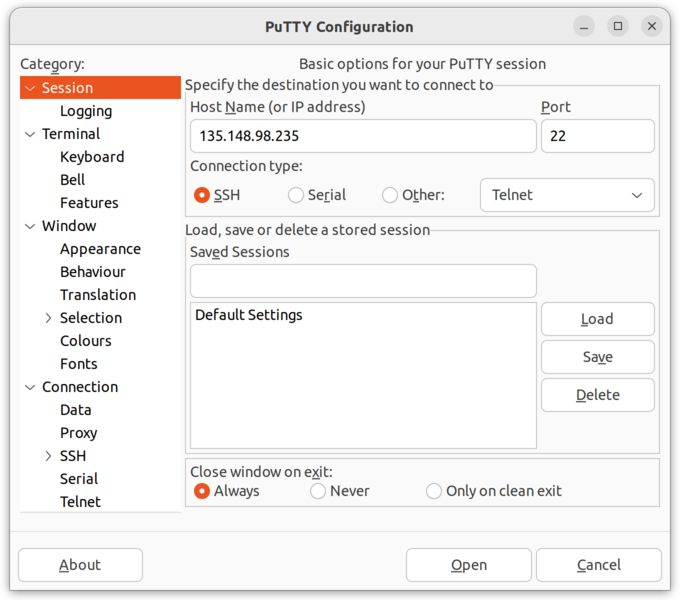
If you prefer a graphical interface, or use an older version of Windows, use PuTTY, which can be downloaded at putty.org.When you open PuTTY, you will see a screen like the one shown below. You only need to enter the "Host Name" information. This information is available in your account panel.
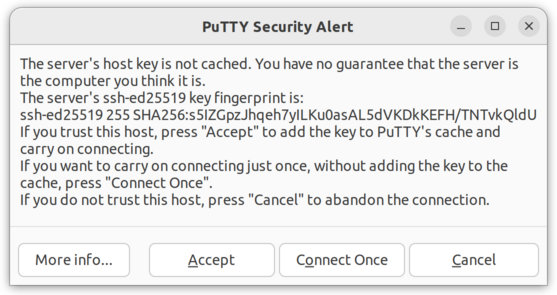
 The first time you access your VPS, you may receive the warning shown below. This warning indicates that the VPS server's identification is not recognized, which is normal since no connection has been made previously. Click "Yes" to proceed.
 A command terminal will open. When you see "login as:", enter your username. Similarly, when prompted for "password:", enter your initial password. These details are also available in your account panel.
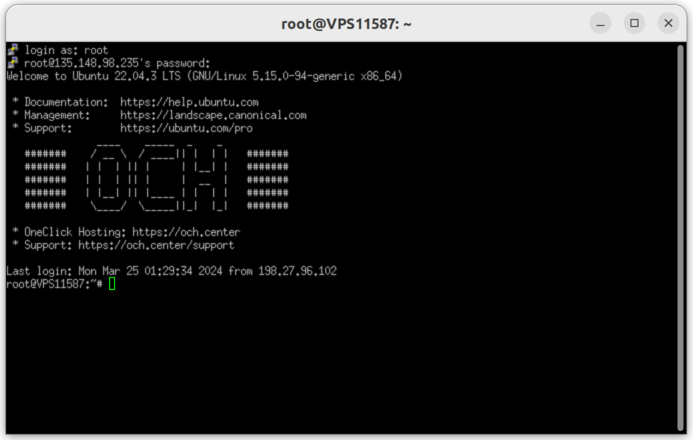 If the information is correct, you will see a screen like the one shown above. The access has been successful, and any command can now be executed remotely in this terminal.
If you have any difficulties, open a support ticket: Open ticket